Lynvizo Play
IPTV, EPG, movies and series, recording, multi-screen and PiP.
Version: 7.6.1
Download Standard
14-day free trial · Windows 10 / 11
Before you download, take a quick look at what to expect during installation. Windows will show one warning — totally normal for new apps. Here's how it'll go.
Two optional installers and update channels. The Personal licence price is the same for Standard and Pro.
IPTV, EPG, movies and series, recording, multi-screen and PiP.
All Standard features plus torrent playback, seek and Cast to compatible TVs.
Three short steps. We show you the screens before they appear, so you know exactly what to do.
Each download and release has its own installer. Verify the exact downloaded file on VirusTotal before installing; an older report is not proof for a new release.
→ Verify yourself on VirusTotal
When you run the installer, Windows SmartScreen shows a blue screen saying "Windows protected your PC". This appears for any new app Microsoft hasn't seen on millions of computers yet. It does not mean the file is unsafe.
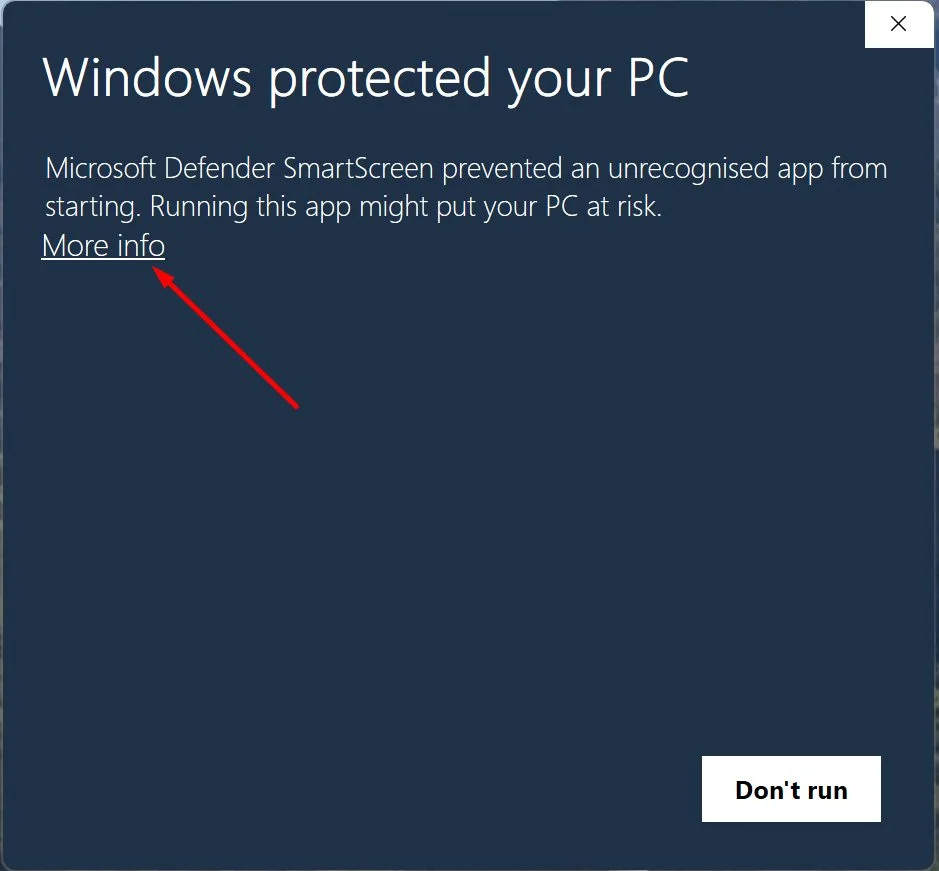
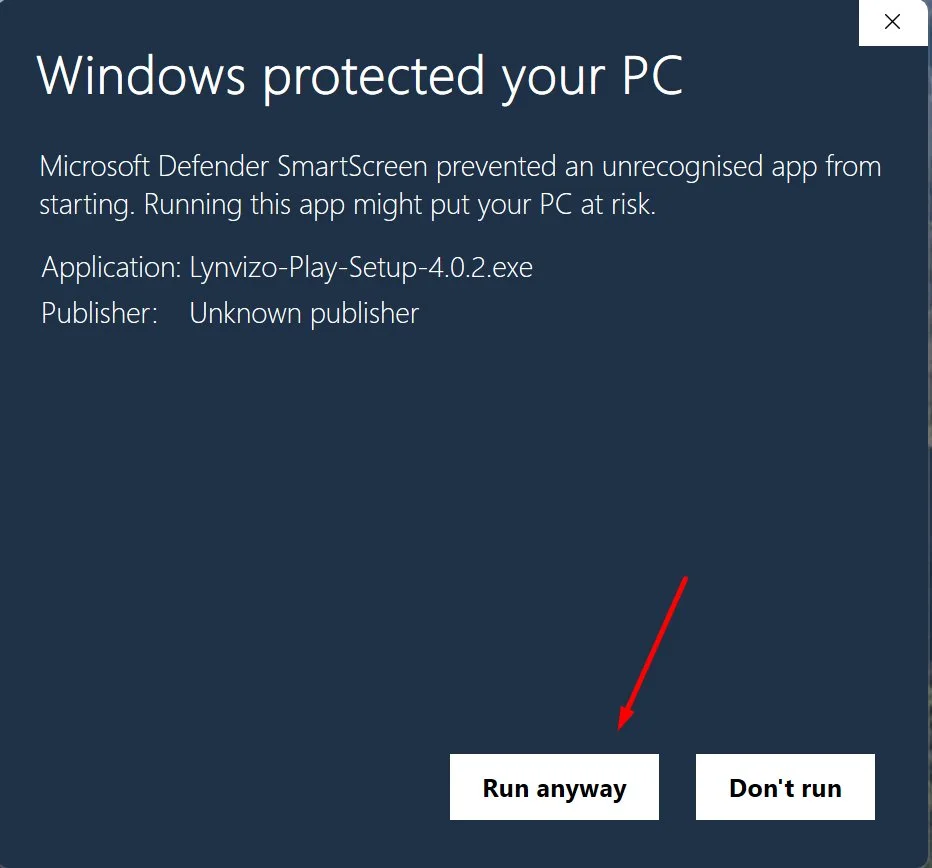
Why? Big software companies pay for a "code-signing certificate" that makes Windows trust them immediately. We're a small team and getting one as an individual developer in the UK is currently impractical. We're working on it. Until then, this is the normal experience for any independent Windows app.
After clicking Run anyway, the standard Windows installer runs. Click Next → Install → Finish and Lynvizo Play opens with a full 14-day free trial — no card, no signup, all features unlocked. Load your M3U playlist or Xtream Codes and start watching.
Choose your installer above. Standard and Pro use the same Personal pricing.